The query block is used in Snap rules to retrieve matching rows from the data source specified. Sources can be a local table, a database table, an array of objects based on a type, or a previously-defined option filter source.
When the query block is first dragged out from the toolbox it will appear in red until the source is specified. 
A completed example of this same block could be:
The three parameters of this block, from left to right:
| Query Parameter | Description |
|---|---|
| Variable Name | The data returned by the query. The result set of the query will be placed into a new variable with this name. The default name is "Result", but we suggest giving it a more descriptive name, such as "VehicleQueryResult". Read more about how to use this variable below. |
| Result Type |
The metadata (or schema) of the query result, expressed as a new type with this name. It defaults to "Type Name", but we suggest a more descriptive name, such as "VehicleType". Even though this metadata is not often used, you must still provide a unique name for it. The metadata which describes the structure of this result set is a list of the columns of data retrieved. Effectively, this metadata is a custom type created for you automatically. Once this type is automatically created by a query block, you can declare variables in this rule to have this same type. This type is helpful if you are interested in using the metadata (structure) of the result set, and not the data itself. For example, when using the Insert block later in your code. |
| Data Source |
The source of the data you will be querying. Valid sources are: databases, tables, arrays, and any option filter source data already defined in that same configurator. The source blocks can be found in the query > sources category of the toolbox, or you can simply select the query block and the appropriate source blocks will appear in the buddy blocks menu to the right. Note that while Tables and other sources are visible in all rules, Database sources are only available in certain rules to keep your configurators secure. Databases are only available in Pricing Rules, Safe Functions, and Output Rules. |
Query Clauses
By using the + button on the left side of the query block, you can add one or more optional clauses to your query to make it faster or more specific. You can mix and match clauses, although some clauses can only be added once. The available clauses are described below.
Select Clause
The select clause limits the columns and rows which will be returned in the result. Excluding the select clause is equivalent to selecting all columns and all matching rows from the source.
If you have a source with many columns and rows, but only need a few of them returned, add a select clause to speed performance and reduce memory use.
- To limit columns, browse the Snap toolbox's purple query > select section. The "table column" block appears in the list. Drag that block into the Select slot for each of the columns you need. By default it appears with "*" as the column name, which means "all columns".
-
To limit rows, the select clause has an optional dropdown list with 4 options:
- (blank): Default. Returns all matching results.
-
Distinct: Select only distinct values of the selected column from the source.
For example, if you have a table of vehicles, several of the rows might have a Make column value of "Ford". Instead of having "Ford" show up several times in the result, you can set to "select distinct Make" so "Ford" and all other Make entries appear only once in the result set. This is helpful if you want to display a drop-down list of product categories that appear many times within a table of products. - First: Instead of returning an array of matches, first will only return the first match, based on the sort order you specify. Note that this changes the return type of the query variable. Instead of being an array of objects, it will be a singular object. Learn more in the Using Your Results" section below.
- Top: Gives you an option to limit the number of returned matches. If you set a top of 10 for example, you will receive at most 10 objects in the result, even if there were more. The matches are based on the sort order you specify.
Where Clause
Build an expression to filter results. Combine expression blocks with logic blocks (like if, and, or, not) to create more complex filters. For example, the following query will return all the Ford vehicles that were made after the year 2011.

Use the NOT block to negate a filter parameter.
Unlike SQL, you can conditionally insert or remove filter expressions by using an 'If' block specifically meant for queries.
Comments can be added in-line in your query terms. Comments are ignored by the parser. 
Do not include sensitive information in comments. Rather, use comments for temporary notes or links to your project documentation (as shown here).
Search for inexact matches with the LIKE operator. Use the % character to represent the unspecified portion of your data. For example,
LIKE "%apple%" will find apple, grapple, dappled, and applet.
LIKE "apple%" will find apple and applet.
LIKE "%apple" will find apple and grapple.
The following example shows the variations for using "like" and "not like" in the context of an option filter.
Group By Clause
Aggregate results to show sum, average, or other calculations. Summarize numeric values such as total price, quantity, weight, or discount. Note that once you add this clause to your query, you must follow the standard 'Group By' syntax. Specifically...
- When GROUP BY is used and the SELECT section is empty, the result includes the columns selected in GROUP BY.
-
In the SELECT clause, you can
add the "aggregate [option] of column" block, to calculate the sum, average, and other aggregations. This block only accepts numeric columns.
add the "count records" block to show a total number of rows that match the query's WHERE clause.
Note that each of the "aggregate [option] of column" and "count records" blocks you add to your query require an alias you need to type in. This alias will appear in your result set, not the columns being aggregated.
-
When GROUP BY is used,
the SELECT clause cannot include columns that are NOT included in GROUP BY.
the SELECT clause cannot use the * "all" selector. You must list columns explicitly, or remove the SELECT clause from the query.
and no records match the WHERE clause, the result is an empty array.
ORDER BY can sort only by columns included in GROUP BY or aggregate columns defined in the SELECT section.
Here's an example of a GROUP BY query.

Order By Clause
Gather results in ascending or descending order based on the values of a specific column.
Join Clause
Joins are an advanced feature that allows you to return combined results from 2 or more different related data sources. For example, if you have a table of vehicles, and a table of accessories that are meant to go with those vehicles, you might be interested in retrieving all of the accessories for a certain vehicle that joins together columns from both tables.
The following example retrieves all of the accessories for Ford vehicles.

Some notes on this example:
- We are modifying the schema of the result by using the "column as ____" block to rename the Description column found in both the Accessory table and Vehicle table. This helps alleviate confusion when using the result set.
- We are using an inner join, so we will only see accessories that match a vehicle through our equality expression. There are different types of joins (inner, left, right, full outer). The following diagram explains their use:
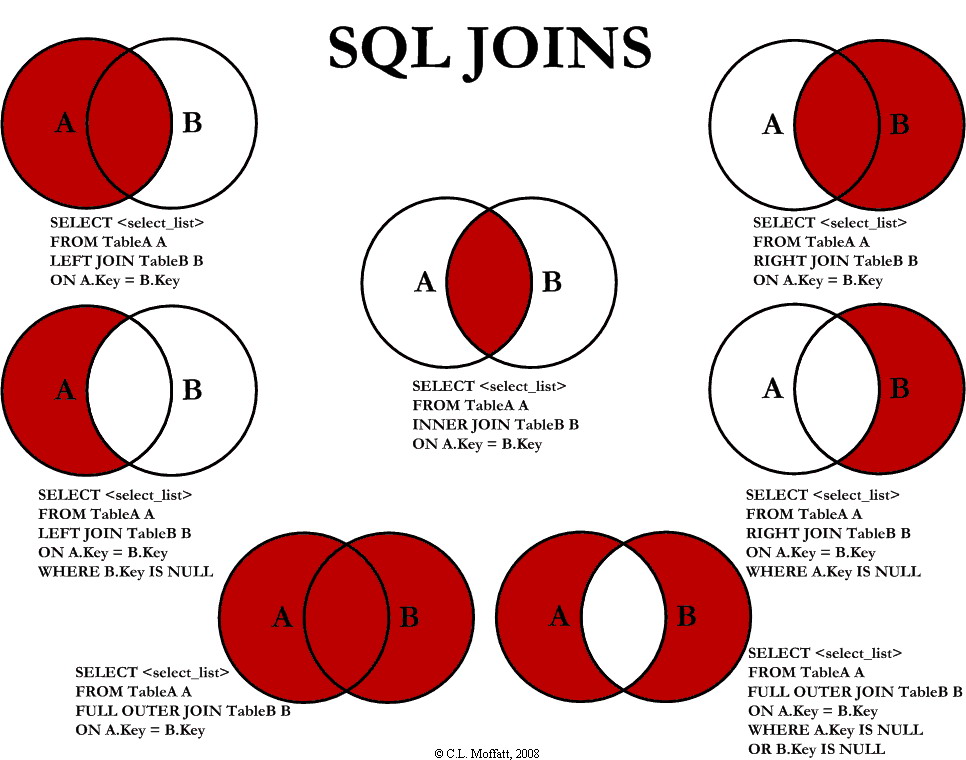
Joins are an extensive topic, and more information can be found here.
Some other common join use cases:
- join a table of product images (from marketing) to a second table of current item availability (from your ERP) to render choices as an imageselect.
- join a table of item specifications to a table of item prices (for the current visitor's gold, silver, or bronze pricing tier) to render items with prices.
Using the results of your query
Once your query is run, you now have a result. Your result can be null, which means no data was returned from your query (no data matched your request). You should always test your result to see if it is not null, before trying to process it.
Depending on how you wrote your query, the result is either a single row or an array of rows (which you should loop through, to access each row).
If you used "Select... First"
Your result is one row, not an array. You can directly access the columns in that array by using the "Get" block.

If you didn't use "Select... First"
Your result is an array. Even if only one row is returned, that row is stored in an array (an array with a length of 1). Use one of the loop blocks to gather up all the results, regardless of how many there are. Here, for example, the "for each" block loops through the result, giving you each row as an item. The columns selected appear as item attributes.

Debug your query results easily
Note the disabled (grey) snap block in the code example above. Placing a JSON-serialized string into a multiline textbox can be a useful way to see the actual results of your query for troubleshooting.
For example, consider an "Accessories" table with these rows:

Querying the above code with the disabled block re-enabled would populate the ArrayResult field with this JSON text:
Using multiple queries in a safe function
In most cases, you perform your table queries in value or other rules, and your database queries within the context of a safe function. Here's an example safe function which uses multiple queries to accomplish a business need.
